
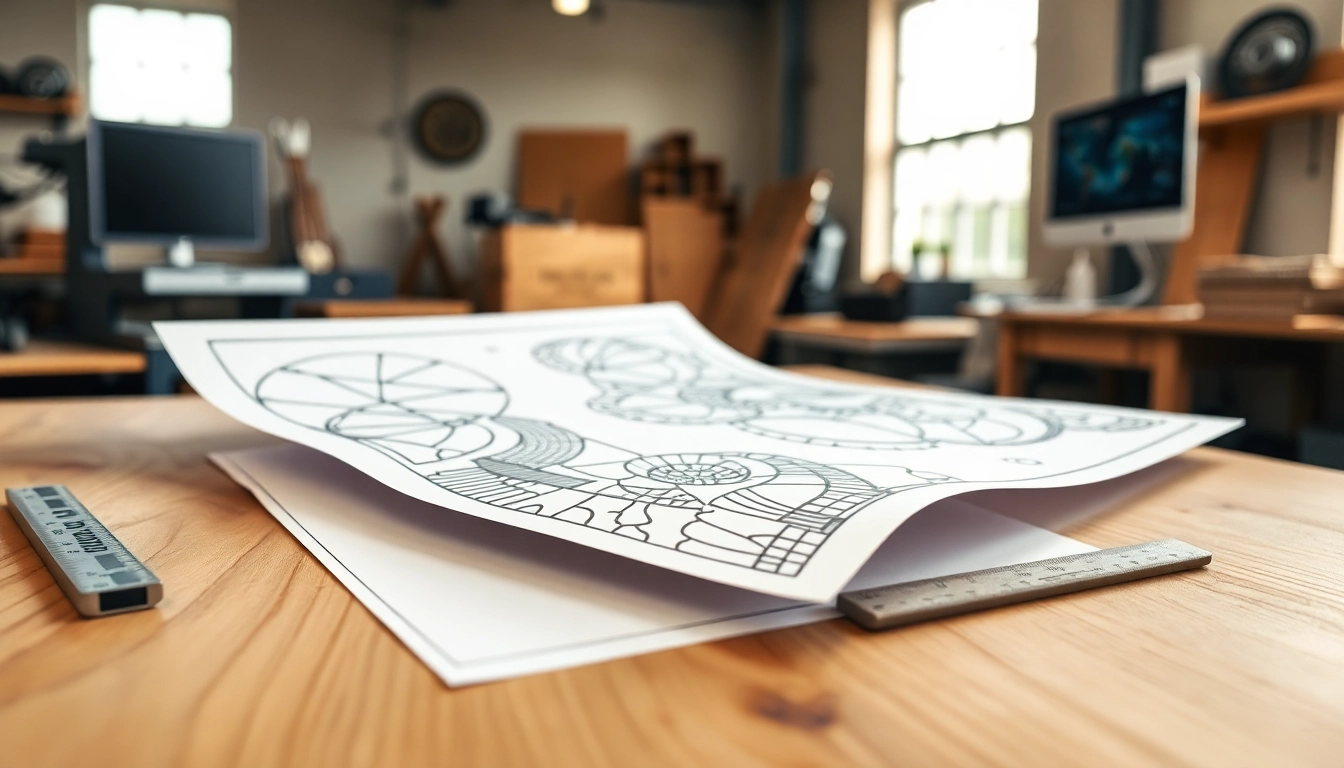
Understanding the Basics of dxf file for laser cutting
What is a dxf file for laser cutting?
A Drawing Exchange Format (DXF) file is a versatile graphic format developed by Autodesk for enabling data interoperability between their CAD software products and other applications. In the context of laser cutting, a dxf file serves as a digital blueprint to instruct the laser cutter on the exact paths to cut, engrave, or etch into materials like wood, acrylic, and metal. By converting designs into the dxf format, creators provide precise coordinates for laser machines to follow, allowing for high accuracy and detail in finished projects. For those looking to use a dxf file for laser cutting, understanding its fundamentals is crucial.
Key Features of dxf files
DXF files possess several key features that make them ideal for laser cutting applications:
- Vector-Based Design: DXF files store information as vectors, which encapsulate paths defined by points, making them scaleable without quality loss.
- Layering: These files can contain multiple layers that allow designers to categorize different elements of a project, enhancing control over the cutting or engraving process.
- Compatibility: Many CAD and design software programs offer support for DXF, making it easy to create and modify files across platforms.
- Precision: The format supports high levels of detail required in professional laser cutting projects.
Common Uses in Laser Cutting Projects
DXF files are pivotal in a variety of laser cutting projects, allowing creators to cut intricate designs with high precision. Common applications encompass:
- Signage: Custom signs for businesses and events.
- Architectural Models: Precise cut components for 3D models and architectural presentations.
- Artwork: Engraved and cut art pieces and sculptures.
- Prototyping: Quick iterations of design concepts for product development.
Choosing the Right Software for dxf file for laser cutting
Popular Applications for Design Creation
Creating designs that will be saved as dxf files for laser cutting requires the right software. Popular applications include:
- AutoCAD: The original software for creating and editing DXF files with extensive features and capabilities.
- Inkscape: A free, open-source vector design tool that can export designs as DXF files.
- CorelDRAW: A graphic design software package particularly favored by laser cutting enthusiasts for its intuitive interface and robust tools.
File Preparation Techniques
To ensure a smooth cutting process, preparing your dxf file is essential. Key techniques include:
- Using Correct Units: Ensure that the file’s units (inches, millimeters) match your laser cutter’s settings.
- Removing Unnecessary Details: Limit complexity by eliminating overlapping paths or intricate details that could complicate cutting.
- Adjusting Line Weight: Set the line weight appropriately; most laser cutters interpret this as cut versus engrave.
Exporting Your Designs as dxf files
Once your design is complete, exporting it as a dxf file is straightforward. Typically, this involves:
- Selecting the Export or Save As option in your software.
- Choosing DXF from the file type dropdown menu.
- Adjusting export settings to ensure compatibility with your laser cutter.
Best Practices for Creating dxf file for laser cutting
Design Tips for Optimal Laser Cutting
To maximize the effectiveness of a dxf file for laser cutting, follow these design tips:
- Simplicity: Keep designs simple and avoid overly complex shapes, which can complicate the cutting process.
- Testing with Low-Quality Materials: Use inexpensive materials for testing to save costs while adjusting settings.
- Confirming Compatibility: Ensure your design is compatible with the machine’s capabilities before starting.
Testing Your Designs Before Production
Validating your design is paramount. Consider conducting dry runs or trials using lower-grade materials to identify potential issues. This helps in:
- Minimizing material waste.
- Adjusting the settings for optimal results.
- Identifying design flaws or unforeseen complications.
Maintaining Precision During the Cutting Process
Precision is crucial during the cutting process to ensure the final product meets expectations. To maintain accuracy:
- Calibration: Regularly calibrate your laser cutter to maintain cutting accuracy.
- Material Setup: Secure materials properly on the cutting surface to prevent movement.
- Use Optimal Settings: Adjust speed, power, and frequency settings according to the material being cut.
Advanced Techniques with dxf file for laser cutting
Layering and Grouping in Your Design
Utilize layering and grouping strategies within your dxf file to enhance productivity and control:
- Layer Differentiation: Assign different cut settings (e.g., speed, power) to various layers for more complicated designs.
- Grouping Elements: Combine elements that will be cut in the same way to streamline workflow.
Utilizing Advanced Features of Software
Take advantage of advanced software features like:
- Pathfinding Tools: Use tools that optimize cutting paths to minimize travel time and enhance efficiency.
- Testing and Simulation: Use built-in simulation features to visualize the cutting process before executing it.
Scaling and Optimization for Efficiency
For projects requiring multiple items, scaling designs is crucial. Consider the following:
- Batch Processing: Place multiple designs efficiently within the cutting area to maximize material usage.
- Using Negative Space: Design elements that allow multiple parts to be cut from a single piece, reducing waste.
FAQs about dxf file for laser cutting
What is a dxf file?
A dxf file is a Drawing Exchange Format file that facilitates the sharing of drawing data between CAD applications, essential for laser cutting designs.
Can any design software create dxf files?
Most CAD design software, especially those targeted at engineering and graphics, support the creation of dxf files, making it a versatile choice across platforms.
How do I prepare my dxf file for laser cutting?
Prepare by ensuring correct units, simplifying the design to remove unnecessary details, and adjusting line weights to define cutting versus engraving paths.
What materials are suitable for laser cutting?
Common materials include wood, acrylic, leather, cardboard, and certain metals. Always verify material compatibility with the specific laser cutter.
How do I troubleshoot common laser cutting issues?
Troubleshooting involves checking for misalignments, ensuring correct settings, calibrating the laser, and inspecting the materials for defects or compatibility issues.